
Una introducción rápida: hacerlo bien desde el principio.
We've all been there. The endless email chain: "Can you move the logo one millimeter to the left?" "This color looks darker than the last sample." "The file you sent is corrupt, could you send it again?" These seemingly small communication hiccups are the single biggest source of delays, frustration, and costly mistakes when working with a custom yoga mat manufacturer. Knowing how to prepare design files for a yoga mat manufacturer correctly — before you hit send — eliminates most of these problems entirely.
Think of it this way: a vague design file is like a blurry map. No matter how skilled our engineers are, they can't reach your desired destination. But a professional, precise design file, often based on our design template, is a perfect blueprint. It's a universal language that translates your creative vision into exact, actionable instructions for our yoga mat factory production line.
Don't worry, this isn't nearly as complicated as it sounds. Below, we're sharing our insider's guide—the exact rules we use to avoid errors and speed up production. This is a critical deep-dive into the "design preparation" step of our guide on Cómo personalizar las esterillas de yogaPídale a su diseñador que siga estos principios, y nuestra colaboración se sentirá menos como trabajo y más como magia.
1. El corazón de tu archivo: por qué Vector es la única opción
This is the most fundamental rule, and it's non-negotiable.
Una analogía sencilla
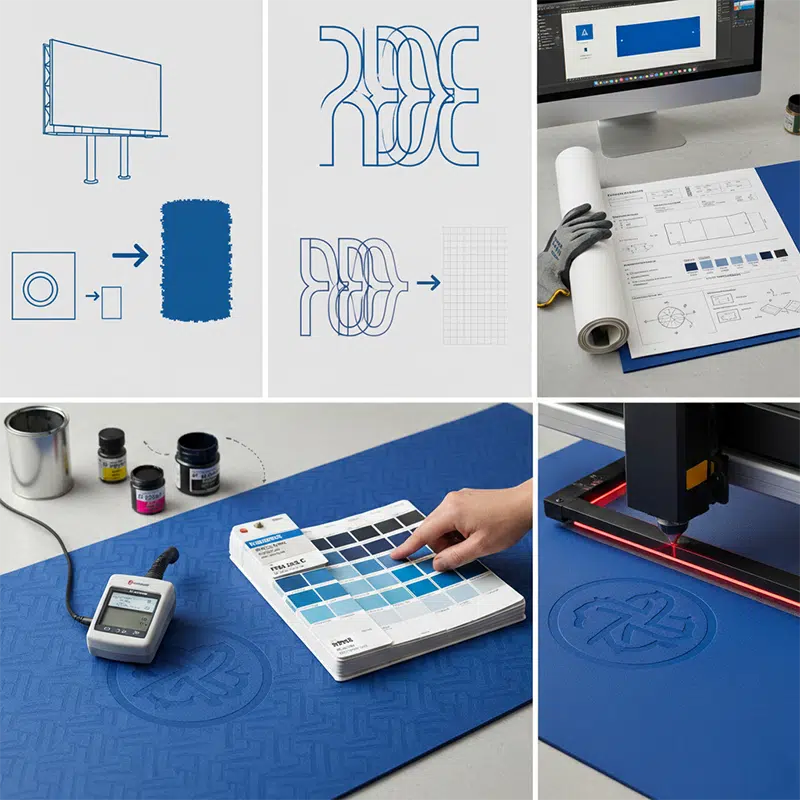
Imagine your brand logo is a "smart rubber band" defined by mathematical points. You can stretch it to the size of a business card or expand it to fit a giant billboard, and its edges will always remain perfectly sharp and clean. This is a vector file (.ai, .pdf, .eps).
Ahora, imagina que tu logotipo es una fotografía compuesta por pequeños puntos fijos (píxeles). Se ve muy bien en tu teléfono, pero cuando intentas ampliarlo para su producción, esos puntos se vuelven visibles, creando un desastre borroso y dentado. Esto se debe a menudo a una baja resolución o a un DPI (puntos por pulgada) insuficiente. Se trata de un archivo rasterizado o de mapa de bits (.jpg, .png, PSD, TIFF).
Why We're So Strict About This
Our machines—whether for laser engraving, screen printing, or UV printing—don't see images. They follow paths and coordinates. A vector file provides these precise paths. A raster file just provides a map of blurry pixels. Using a raster file for manufacturing will inevitably result in a low-quality, unprofessional-looking product.
Lo que tienes que hacer
Pida a su diseñador que le proporcione el archivo fuente original creado en Adobe Illustrator (.ai).
- Mejor formato: .ai (Este es el archivo maestro con todas las capas y capacidades de edición intactas. Nos encanta).
- Buena alternativa: PDF editable (al guardar como PDF, asegúrese de que la opción «Conservar capacidades de edición de Illustrator» esté marcada).
2. La póliza de seguro de fuentes: convierte tu texto en contornos
Una pesadilla que vemos a diario
You've chosen a beautiful, unique font for your brand. It's elegant and perfectly captures your brand's spirit. You send us the design file. When we open it, a warning flashes on our screen: "Missing Fonts." Instantly, your carefully chosen text is replaced by a generic default font like Arial or Times New Roman. The entire design's layout and personality are destroyed in a single click.
What's Happening?
Fonts are like software; they are installed on individual computers. The special font on your designer's Mac does not exist on our production PCs.
La solución con un solo clic
Luckily, there's a simple, permanent solution. In Adobe Illustrator, ask your designer to select all the text in the file and press:
- Mac: Cmd + Mayús + O
- PC: Ctrl + Mayús + O
This command is called "Create Outlines." It instantly converts your editable text into a fixed, unchangeable shape. It's like pouring concrete around the letters—they are now locked in place forever. This guarantees your design will look identical on any computer in the world.
Consejo profesional: Guarde siempre una copia de seguridad del archivo antes de crear esquemas. De esta forma, si alguna vez necesita cambiar el texto, seguirá disponiendo de una versión editable.
3. El lenguaje universal del color: especifique los códigos Pantone (PMS)
We've arrived at the most critical and often misunderstood topic: color.
La gran mentira del color en la pantalla
The blue you see on your iPhone, the blue on your designer's Dell monitor, and the blue on our yoga mat factory's calibration screen are three different blues. Screen brightness, brand, age, and even the ambient light in the room can dramatically alter how a color appears. This discrepancy often arises because the color mode of screens (RGB) is different from printing (CMYK). Relying on screen colors for manufacturing is a recipe for disappointment.
El patrón oro
The Pantone Matching System (PMS). Think of Pantone as the international passport for color. Each code (e.g., "PMS 286 C") corresponds to a single, globally recognized color with a precise ink formula for creating it.
Lo que tienes que hacer
Please ask your designer to assign a specific Pantone Solid Coated code to every single color element in your design. Instead of just picking a blue that "looks right," they should use Illustrator's built-in Pantone library: Swatch Libraries > Color Books > PANTONE+ Solid Coated.
- What does the "C" mean? It stands for "Coated," which represents how the color will appear on a smooth, coated surface—very similar to the surface of our yoga mats.
When you give us a Pantone code, our ink technicians are no longer guessing. They are following a scientific formula to mix the ink, ensuring the final product's color perfectly matches the physical Pantone color swatch. This removes all subjectivity and is the only way to guarantee color accuracy through precise Pantone matching.
El toque profesional: añadir un sencillo «paquete tecnológico»
¿Quieres mejorar tu archivo de diseño y convertirlo de bueno a excelente? Añade un pequeño y sencillo conjunto de notas al margen de tu mesa de trabajo. Esto transformará tu archivo de un simple diseño a una hoja de instrucciones de fabricación profesional con especificaciones claras sobre el diseño gráfico.
- Dimensiones del producto: Por ejemplo, longitud 1830 mm, anchura 680 mm, grosor 5 mm.
- Colocación del logotipo/patrón: Sea preciso. Por ejemplo: «El punto central del logotipo está a 150 mm del borde superior, centrado horizontalmente».
- Clave de colores: Enumere todos los colores Pantone utilizados. Por ejemplo: «Cuerpo principal del tapete: PMS Cool Gray 1 C, logotipo: PMS Black 6 C».
- Notas del proceso: Indíquenos su intención. Por ejemplo: «Logotipo grabado con láser para obtener un efecto sutil en relieve» o «Patrón serigrafiado».
- Líneas de sangrado y recorte: Si su diseño se extiende hasta el borde, especifique un área de sangrado (por ejemplo, 5 mm) para asegurarse de que no queden bordes blancos después del corte. Tenga en cuenta las líneas de recorte para el tamaño final.
Reflexiones finales: considérenos su socio técnico.
Si todo lo anterior le parece un poco abrumador, no se preocupe. Precisamente para eso estamos aquí. Nos esforzamos por ser el mejor fabricante de esterillas de yoga guiándole a lo largo de este proceso. Su experiencia reside en crear una marca brillante y una visión hermosa. Nuestra experiencia como fabricante líder de esterillas de yoga personalizadas reside en navegar por estos requisitos técnicos para hacer realidad esa visión a la perfección.
Por lo tanto, si usted o su diseñador tienen alguna duda sobre un documento, lo mejor que pueden hacer es enviarnos lo que tengan. Estaremos encantados de revisar su borrador, ofrecerle comentarios y ayudarle a optimizarlo para su fabricación. Recuerde que no somos un simple proveedor de esterillas de yoga que espera instrucciones, sino su socio técnico, totalmente comprometido con su éxito. Cuando esté listo, ponerse en contacto con nosotros con tus archivos es el mejor paso a seguir. Trabajemos juntos para convertir ese diseño perfecto en un producto increíble.
FAQ: Preparing Design Files for a Yoga Mat Manufacturer
What file format should I use when preparing design files for a yoga mat manufacturer?
Always use vector formats: .ai (Adobe Illustrator) is ideal, with an editable .pdf as a strong alternative. Avoid JPEG, PNG, or PSD files for manufacturing, as these raster formats lose quality at production scale.
Do I need to convert fonts to outlines before sending design files to a yoga mat factory?
Yes. Always convert all text to outlines (Cmd/Ctrl + Shift + O in Illustrator) before sending. This prevents font substitution errors on the factory's computers, which use different software environments to yours.
What color mode should I use for yoga mat design files?
Use CMYK color mode for your design file, and specify Pantone (PMS) Solid Coated codes for every color element. Screen RGB colors cannot be accurately reproduced in print; Pantone codes are the only way to guarantee color accuracy.
What bleed settings should I include in my yoga mat design file?
Include a minimum 5mm bleed on all edges if your design extends to the mat's border. Also mark trim lines to indicate the final cut size. This prevents white borders from appearing after cutting.
What dimensions should I use when setting up my yoga mat design file?
Standard yoga mat dimensions are 1830mm (length) × 610mm or 680mm (width). Always confirm the exact dimensions with your manufacturer before finalizing your artboard, and include a dimension callout in your tech pack.


